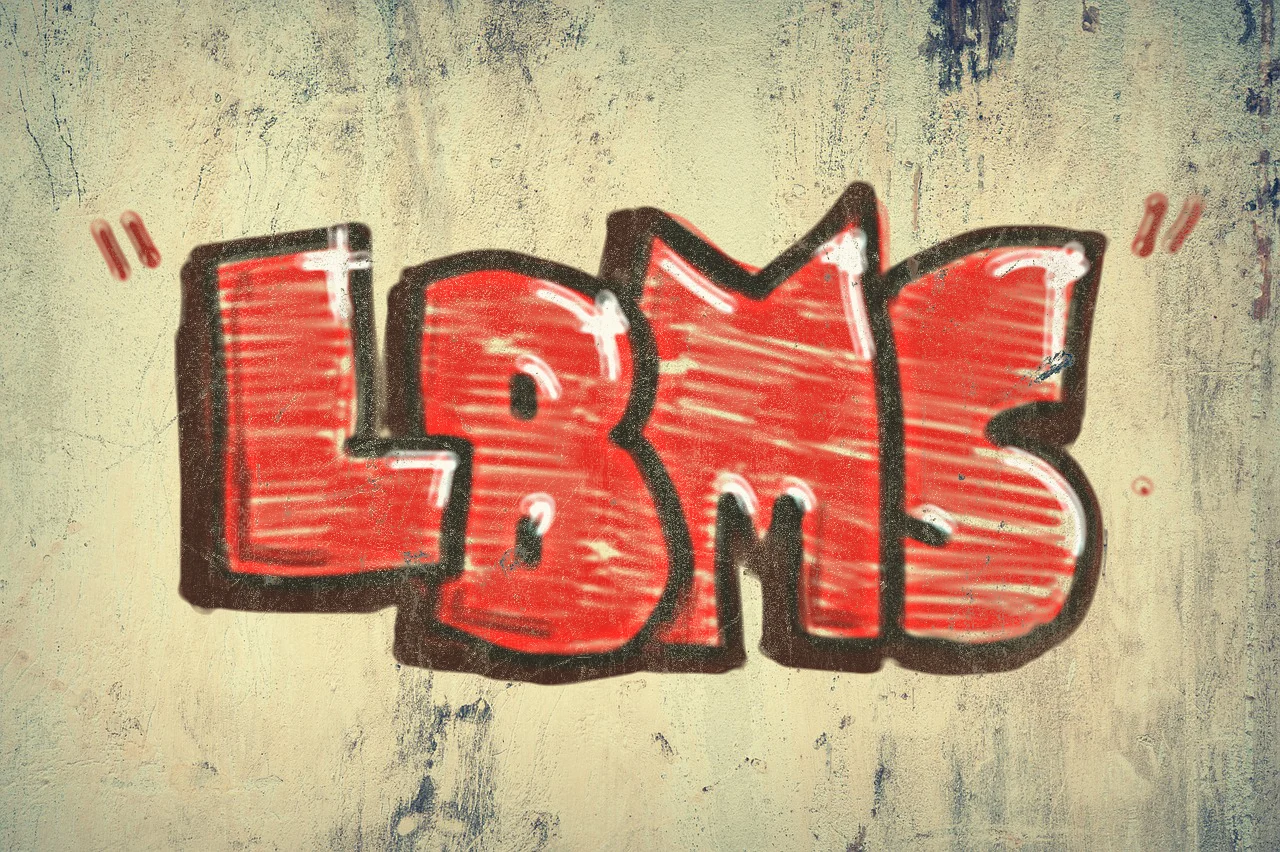
GOAL: Create a simple block or bubble style personal graffiti tag (also called a “throwie” or a “throw up”).
Samples
You can download Photoshop spray paint brushes here.
Every graffiti artist has their own style. These are a few examples, but they are certainly not the only ways to tag.
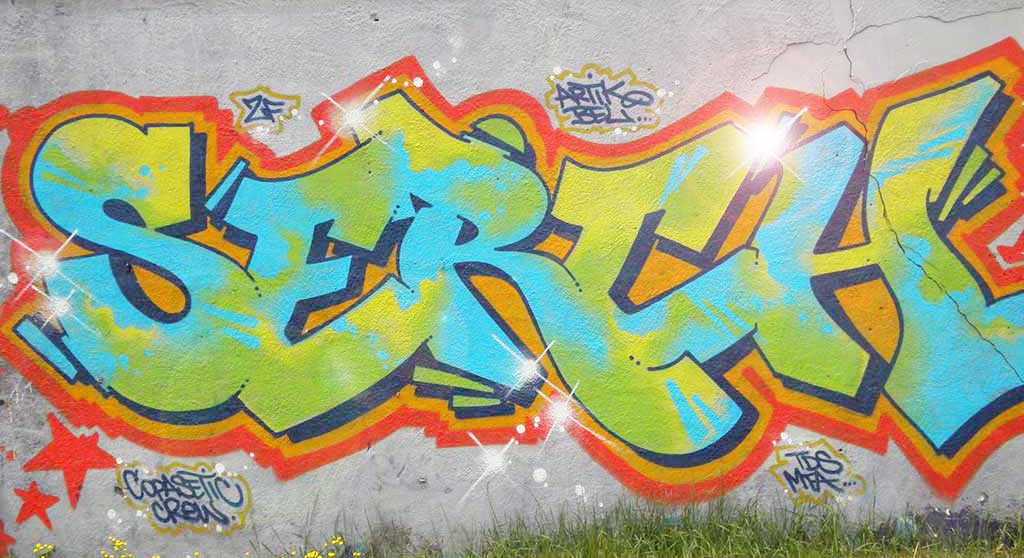

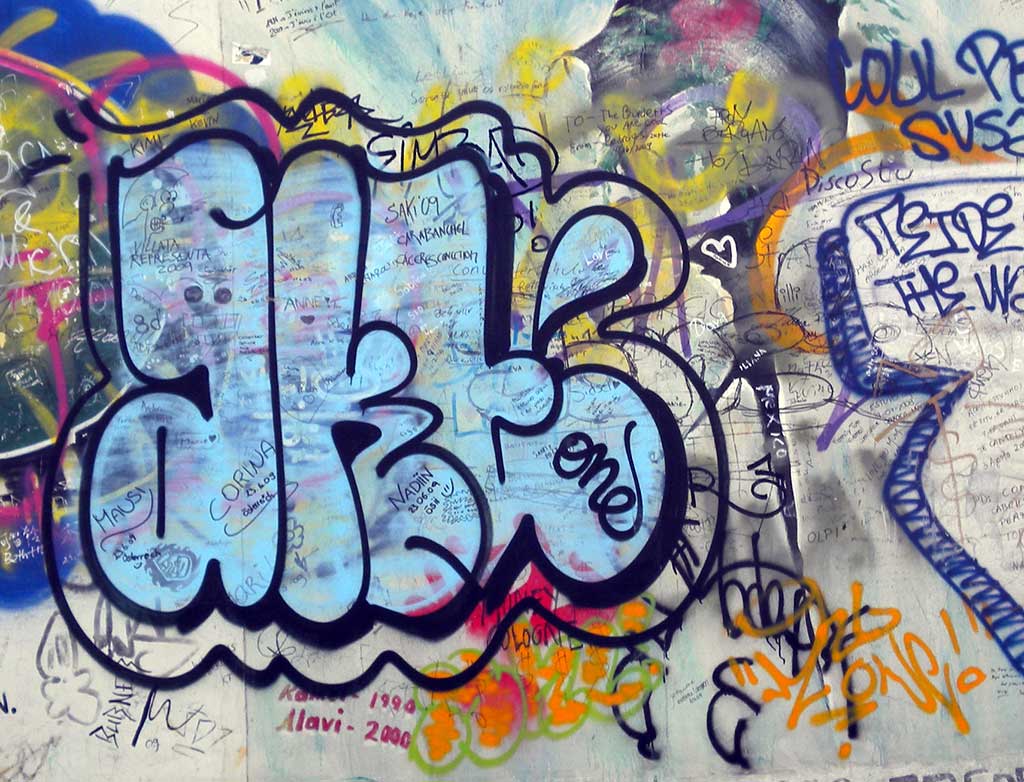
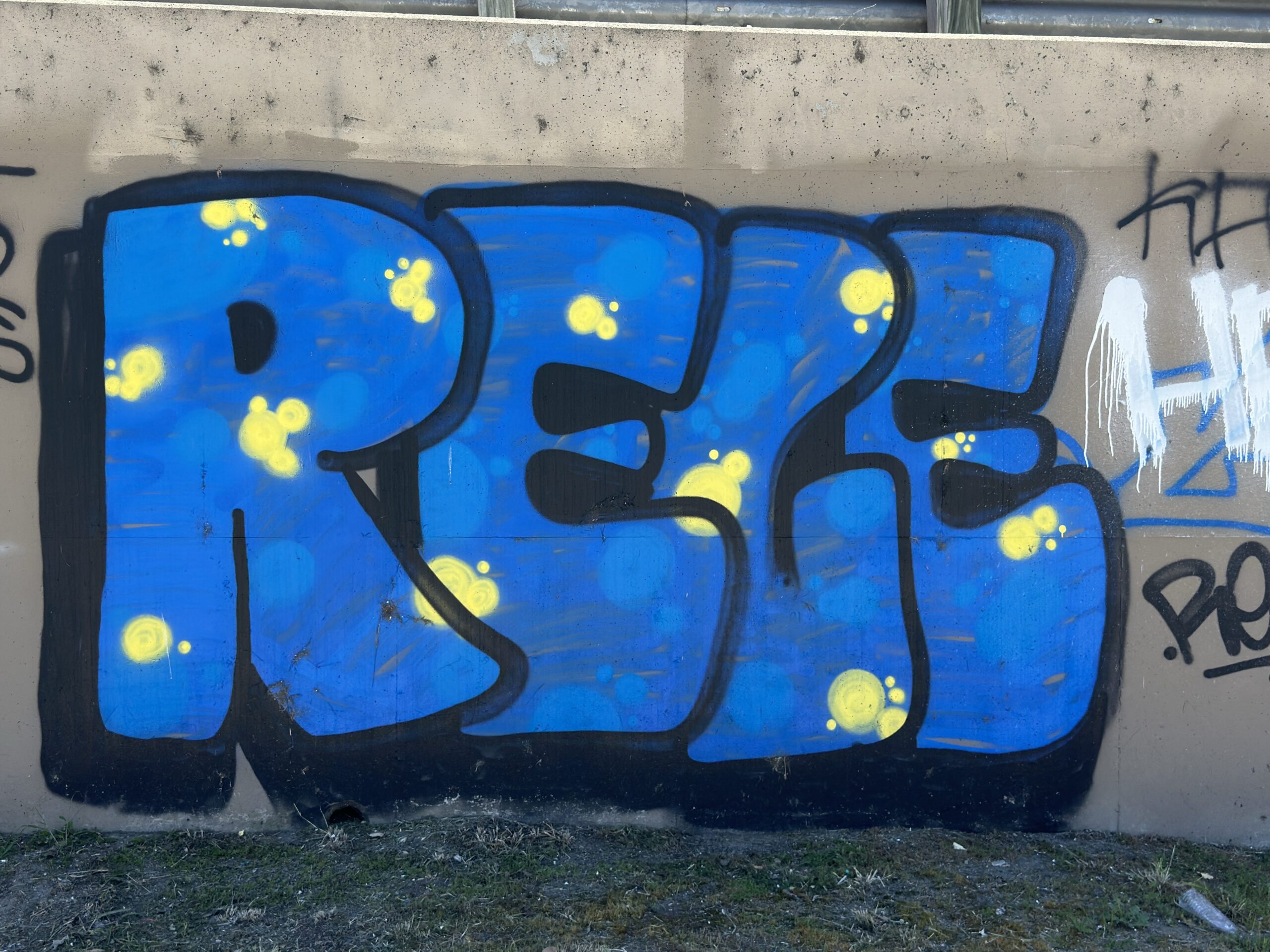

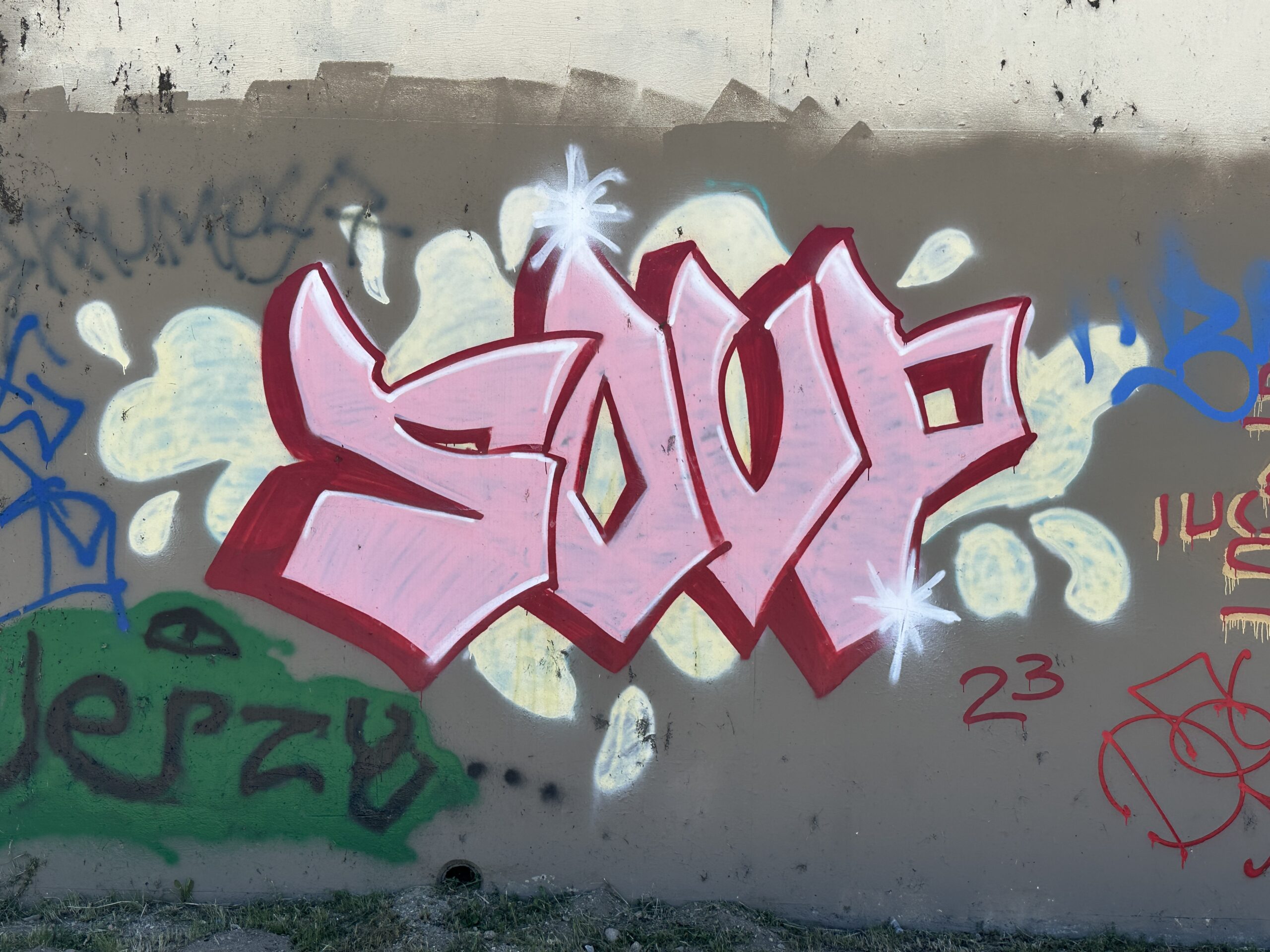
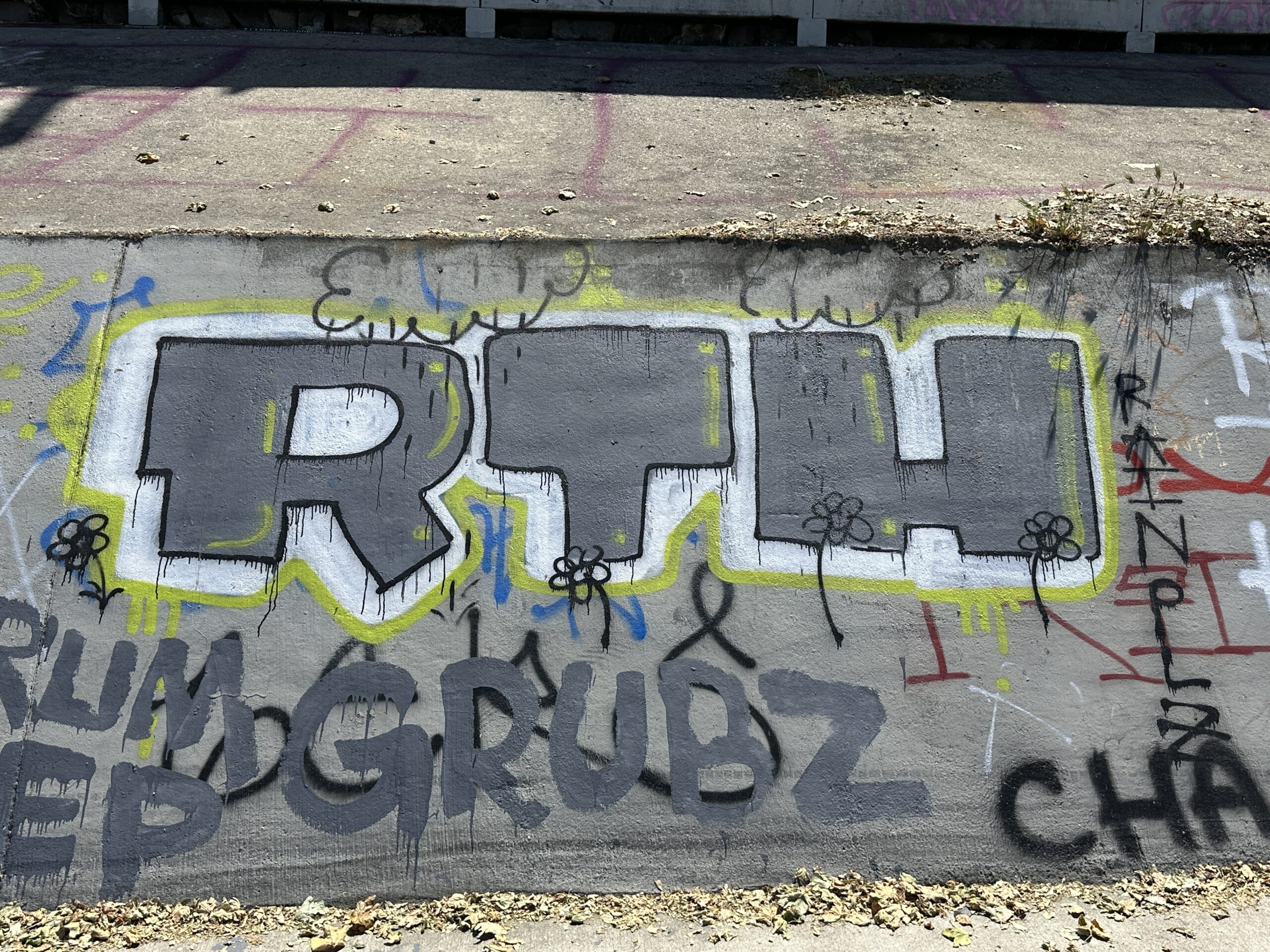

There are more samples here, but there are many more online (and in the real world!).
This tutorial will show one way to make a tag. It is not the only way! If you want to do yours a different way, you may, as long as it follows these basic rules:
- All visible elements are hand drawn. No built-in fonts, no downloaded images, no filters!
- No more than six colors.
- All text is school appropriate.
- All text is reasonably easy to read (no wildstyle for your first work, please!).
- Separate layers for colors and outlines.
- A transparent background (or a background that can be hidden without breaking the tag).
Plan your letters
Open a new document. Make it fairly large. The sample image is 1920 pixels x 1080 pixels.
Make a new layer. Name it something like guide layer.
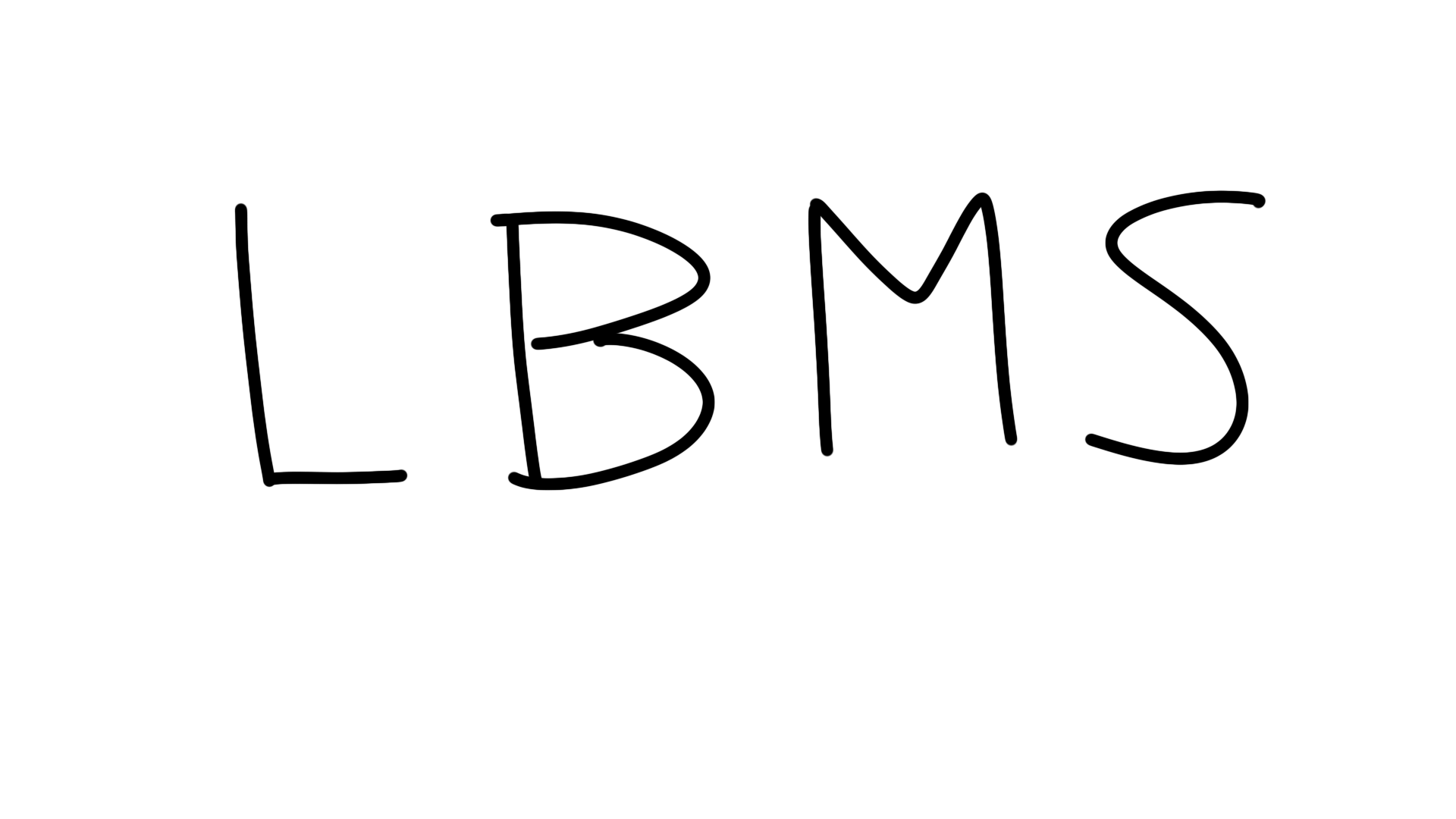
Add guide text. You can draw the letters, or use a simple font. These are hand drawn:
Make another layer for the outline. Name it something like outline.
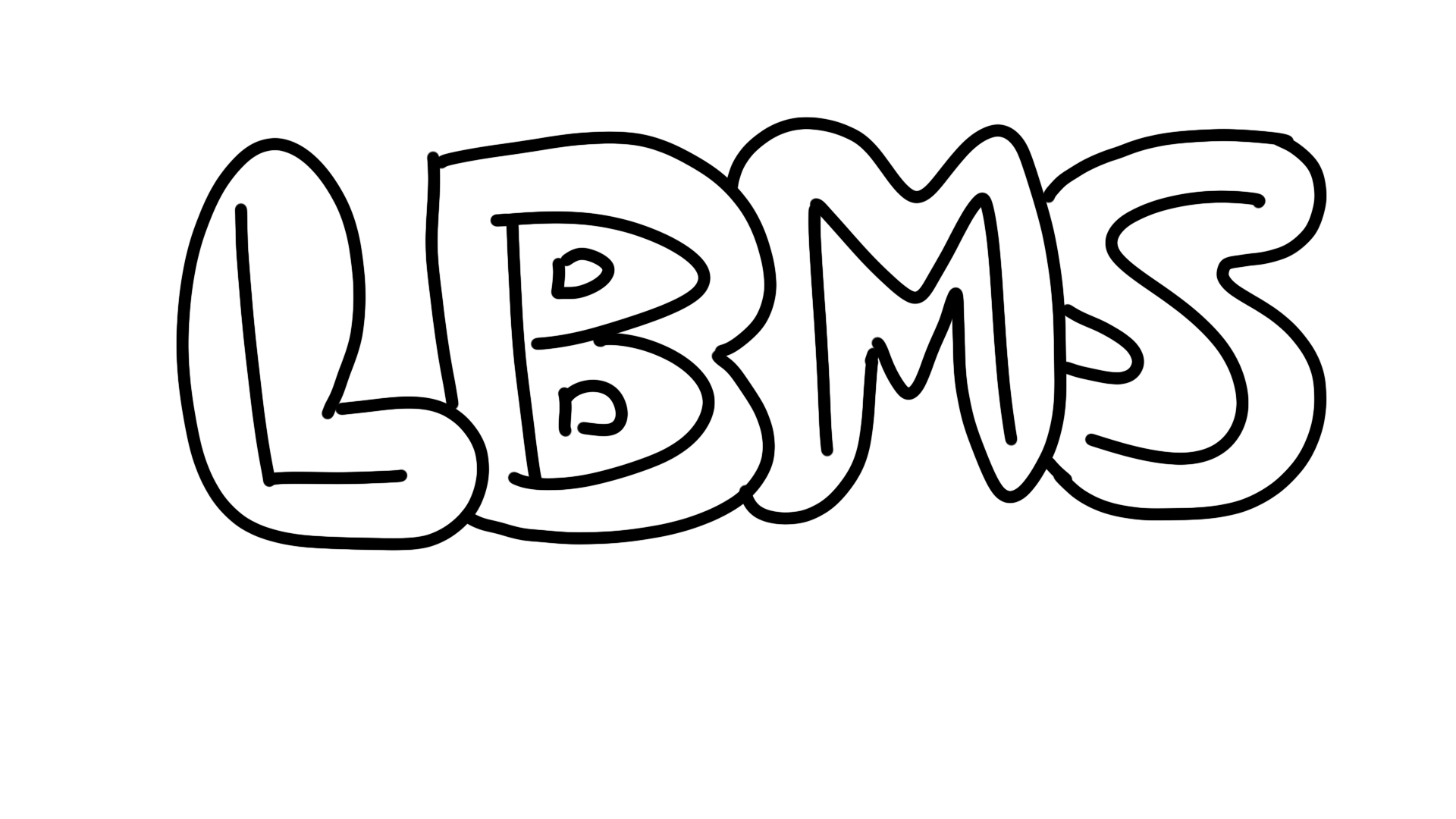
Make an outline around each of the letters. Some or all of the letters might overlap.
Make a layer between the guide layer and the outline for your main color. I usually name it the name of the color I’m going to use.
Color the color layer inside the lines of the outline layer.

Make it fancier. Add more layers for stylistic choices light shadows, highlights, borders, and depth. DO NOT USE FILTERS! DRAW EVERYTHING!
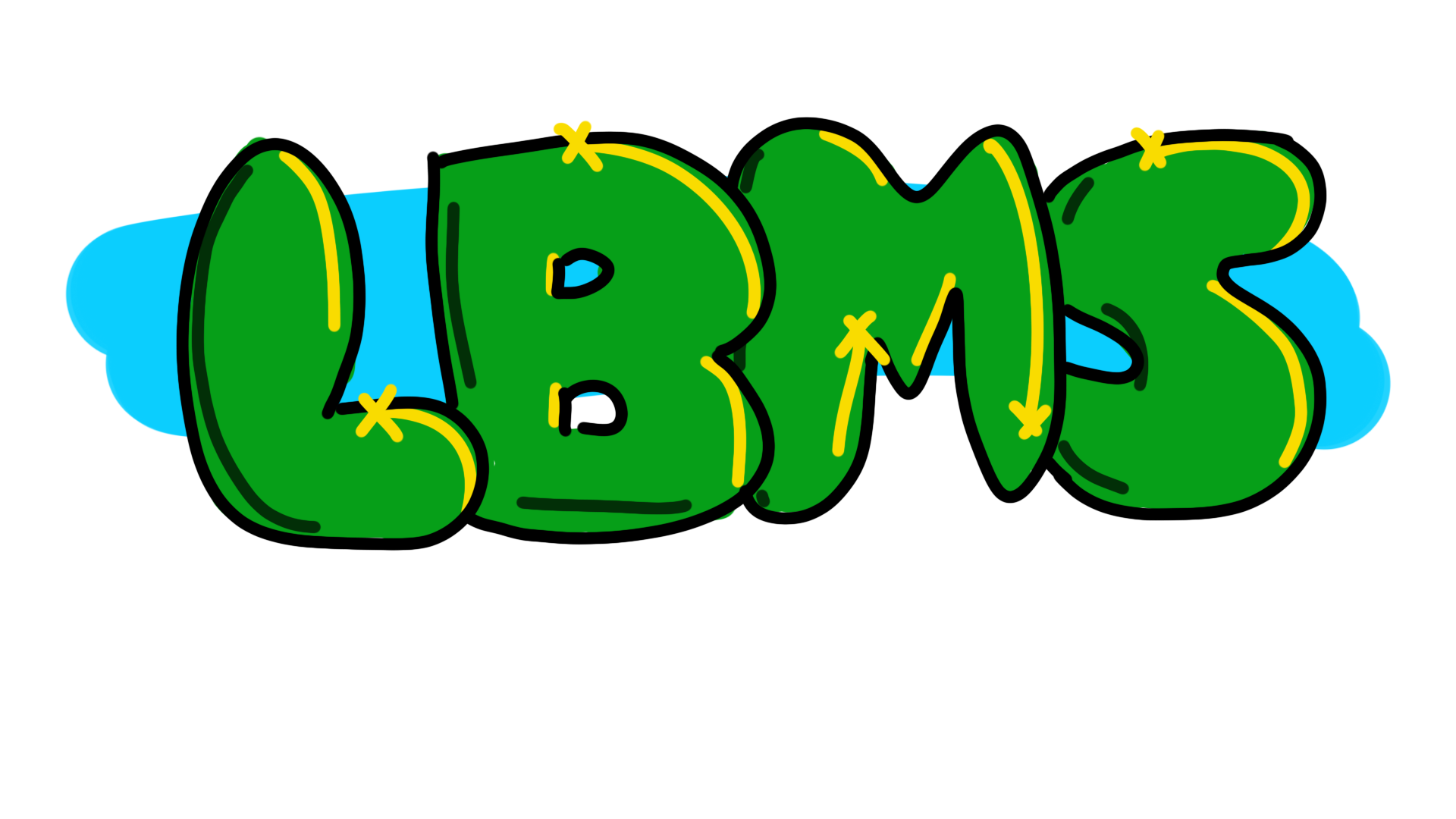
This is a simple tag. You can change the look by using different brushes.
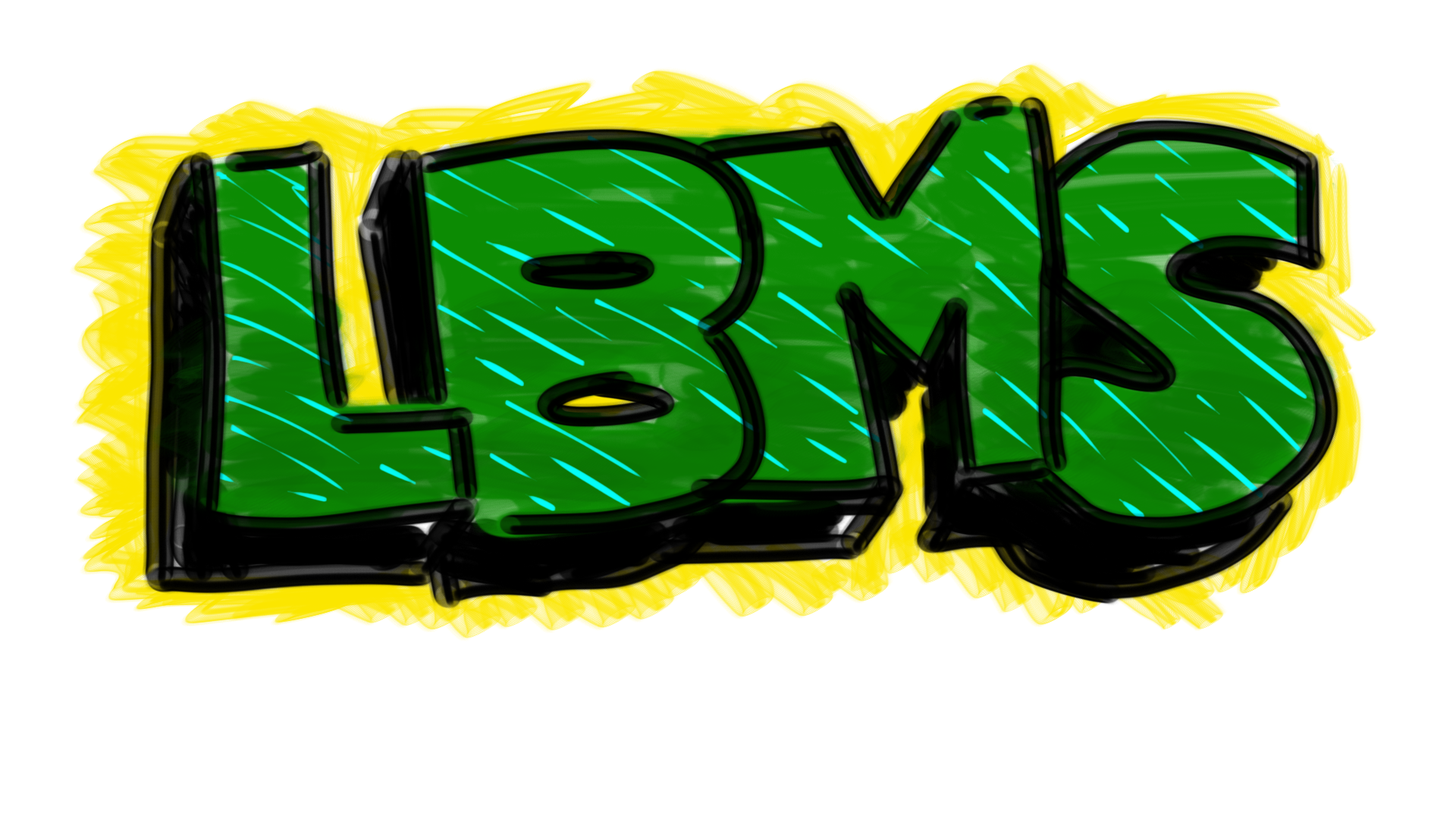
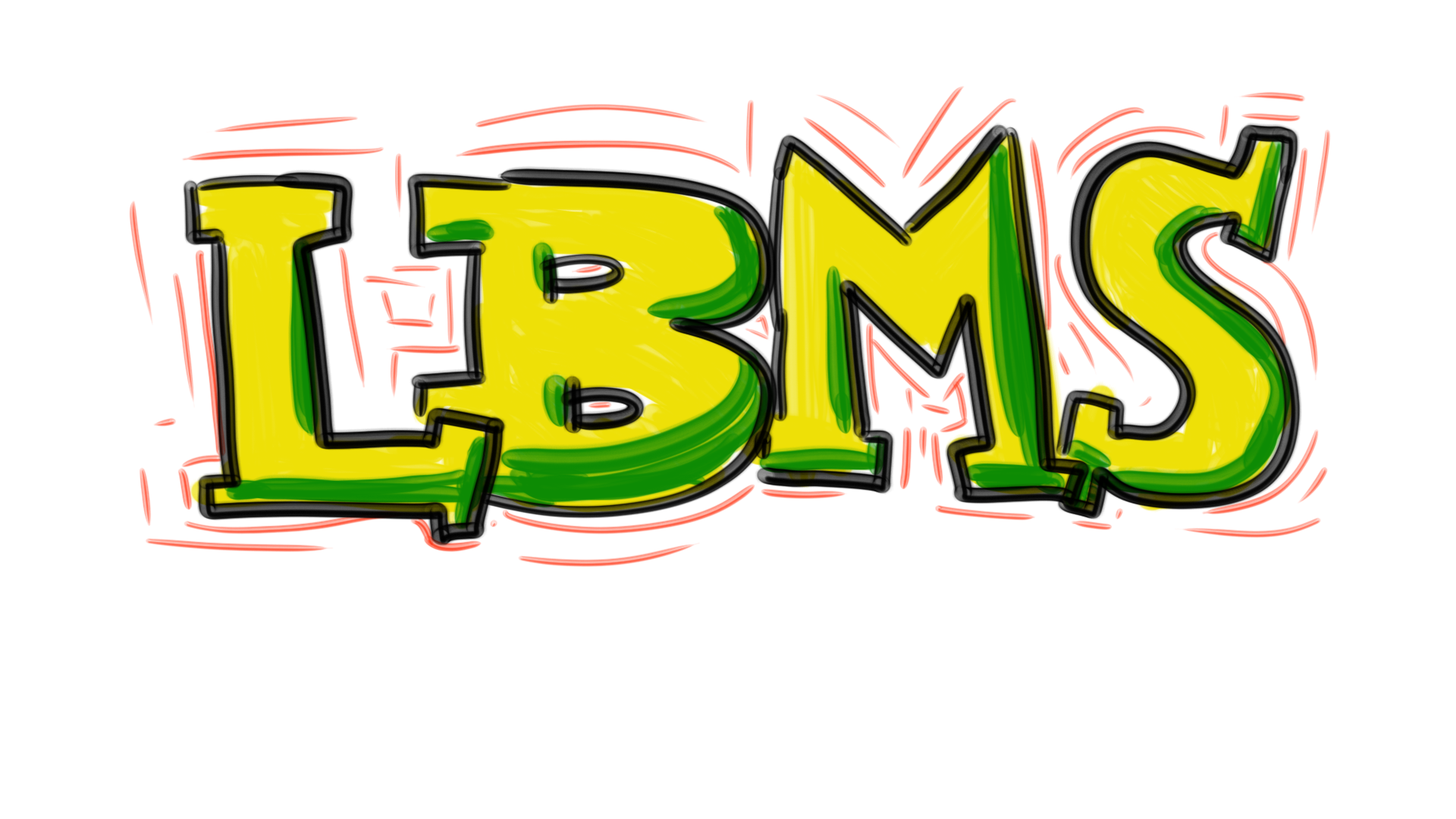
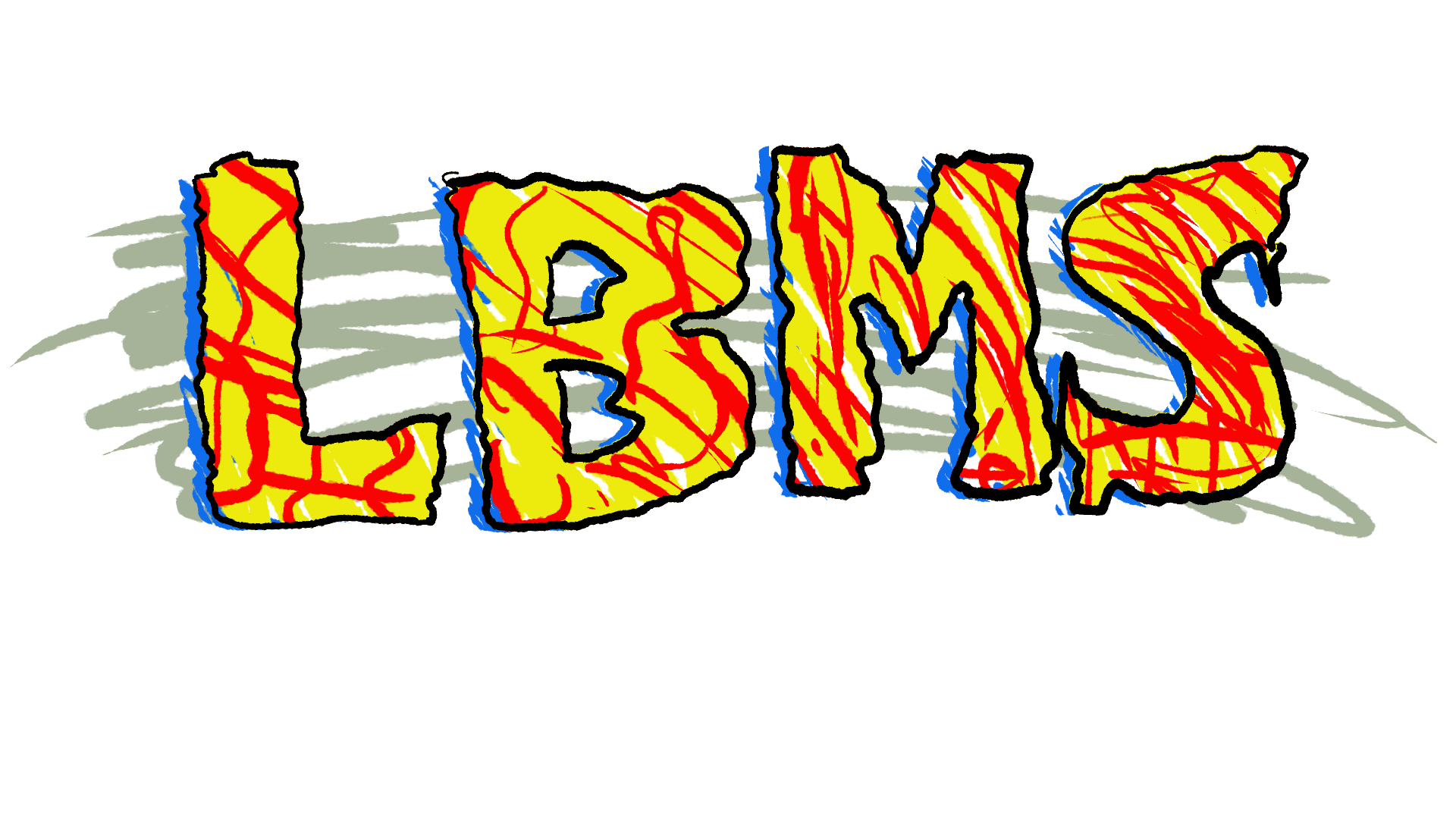
One thing that’s different about the sample versions above and tags painted with spray cans is how solid and even the colors are. When you paint with a spray can, you can often see through the paint to the color of the wall below, like this:

You can imitate this by changing the opacity and flow of a brush at the top of the screen.

Opacity is how much you can see through the brush during each stroke, if you overlap while drawing, the opacity does not change.
Flow works more like a spray can. Overlapping a mark will make it darker.
These three marks were drawn with the same brush with different flow & opacity settings. Notice how the lines look different where they cross themselves, and that the line with lower flow looks softer.

Try using a lower flow rate and one of the spray brushes to make your tag look more like it was done with spray cans.

To really make your tag look real, put it on a wall! I adjusted the opacity and blending to more closely match the background.