
Use Photoshop to create a hybrid animal.
Choose your pictures
You will need at least three starting images: two animals and a background. It usually works better if the animals are in profile (side view).
Here are my starter images:
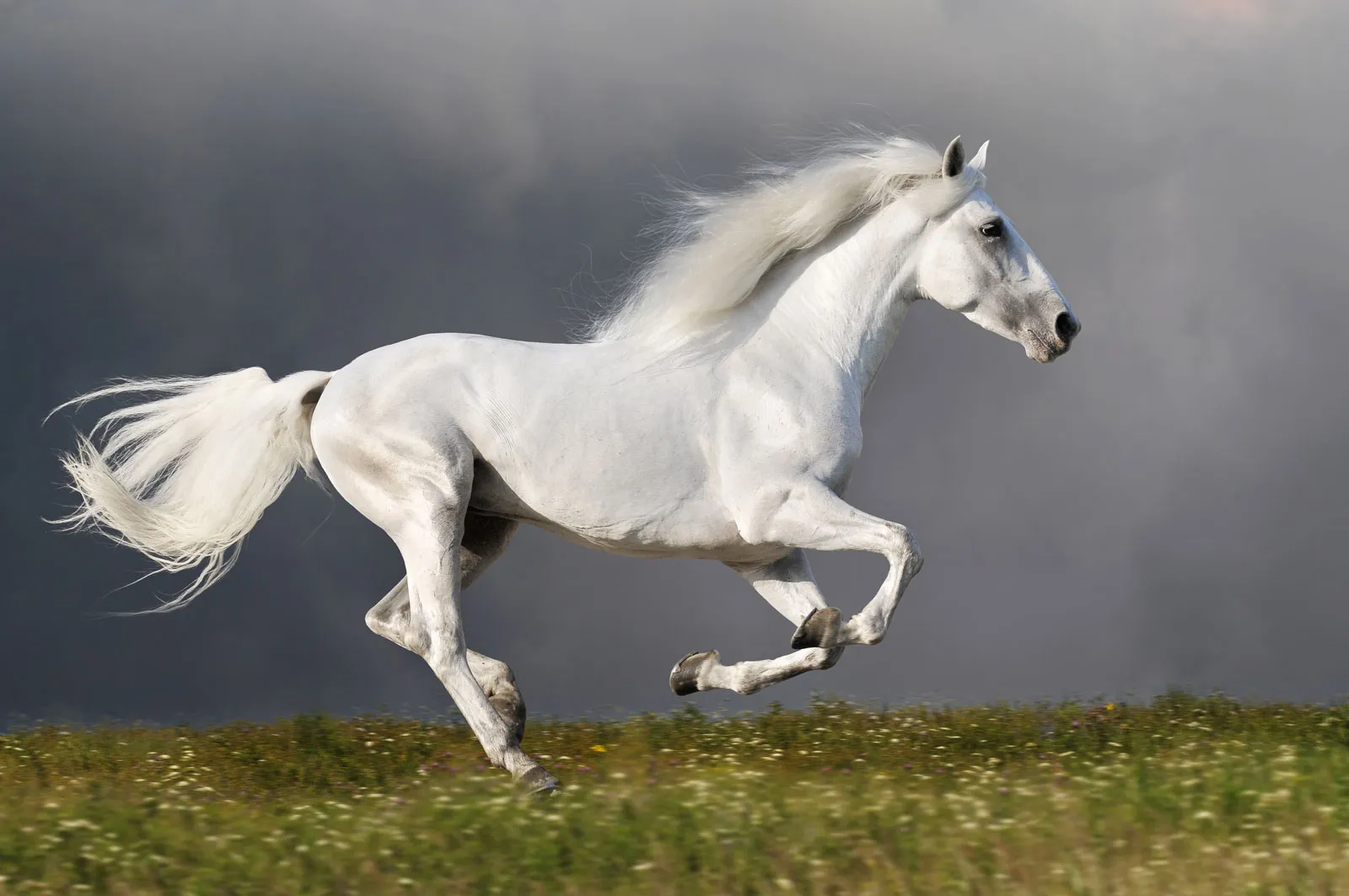
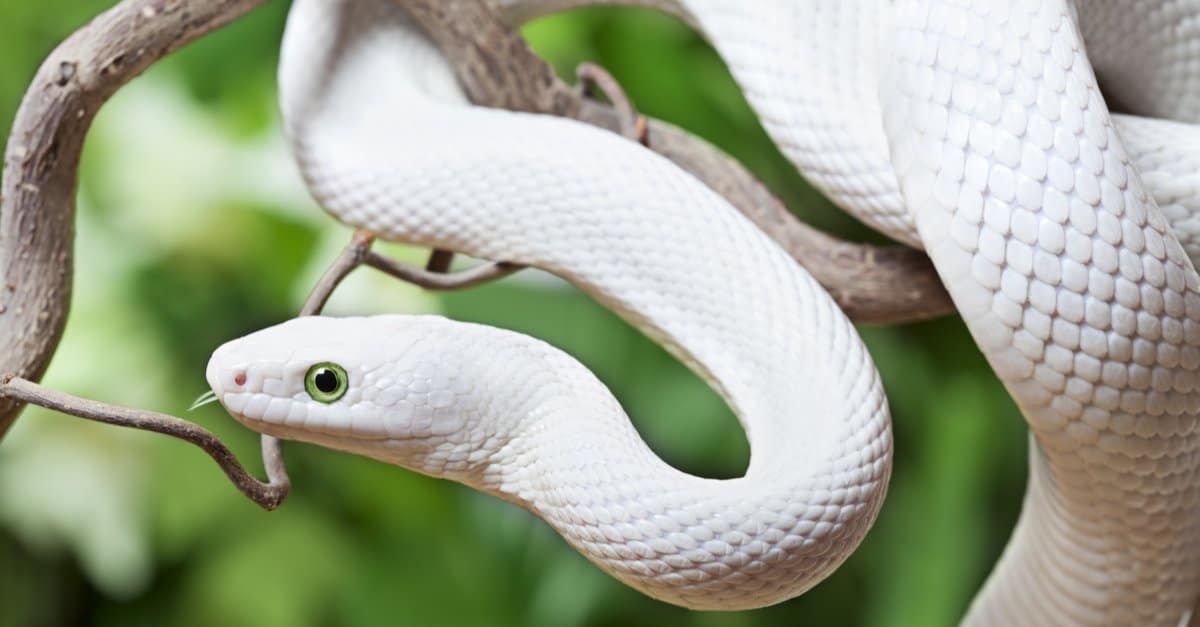
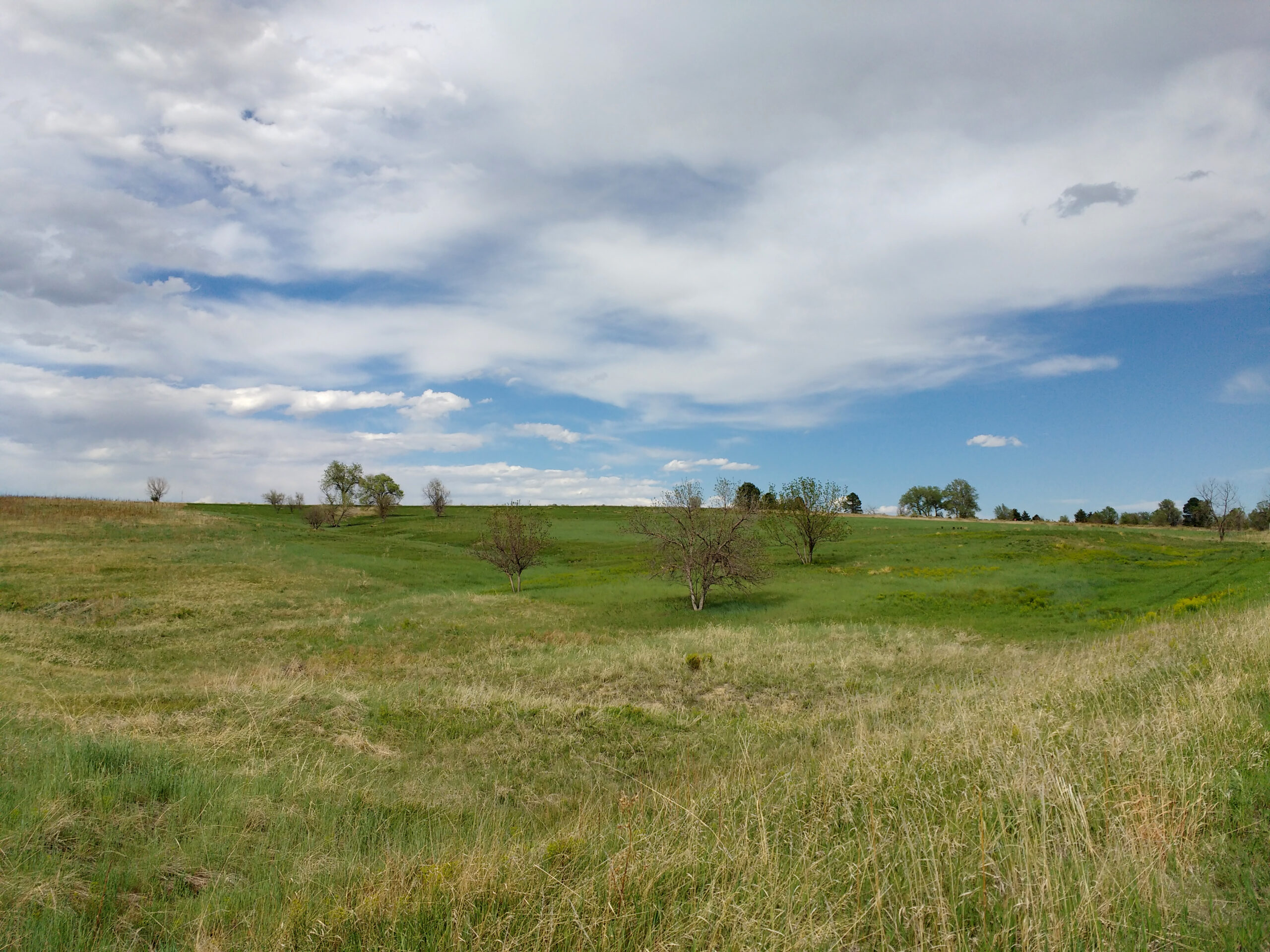
Open all three images
Open all three images in Photoshop. You will see a tab for each picture.
Select and copy the main creature
Switch to the tab with the image of the main body.
On the Contextual Task bar, choose Select subject.

The marching ants will show the selection.
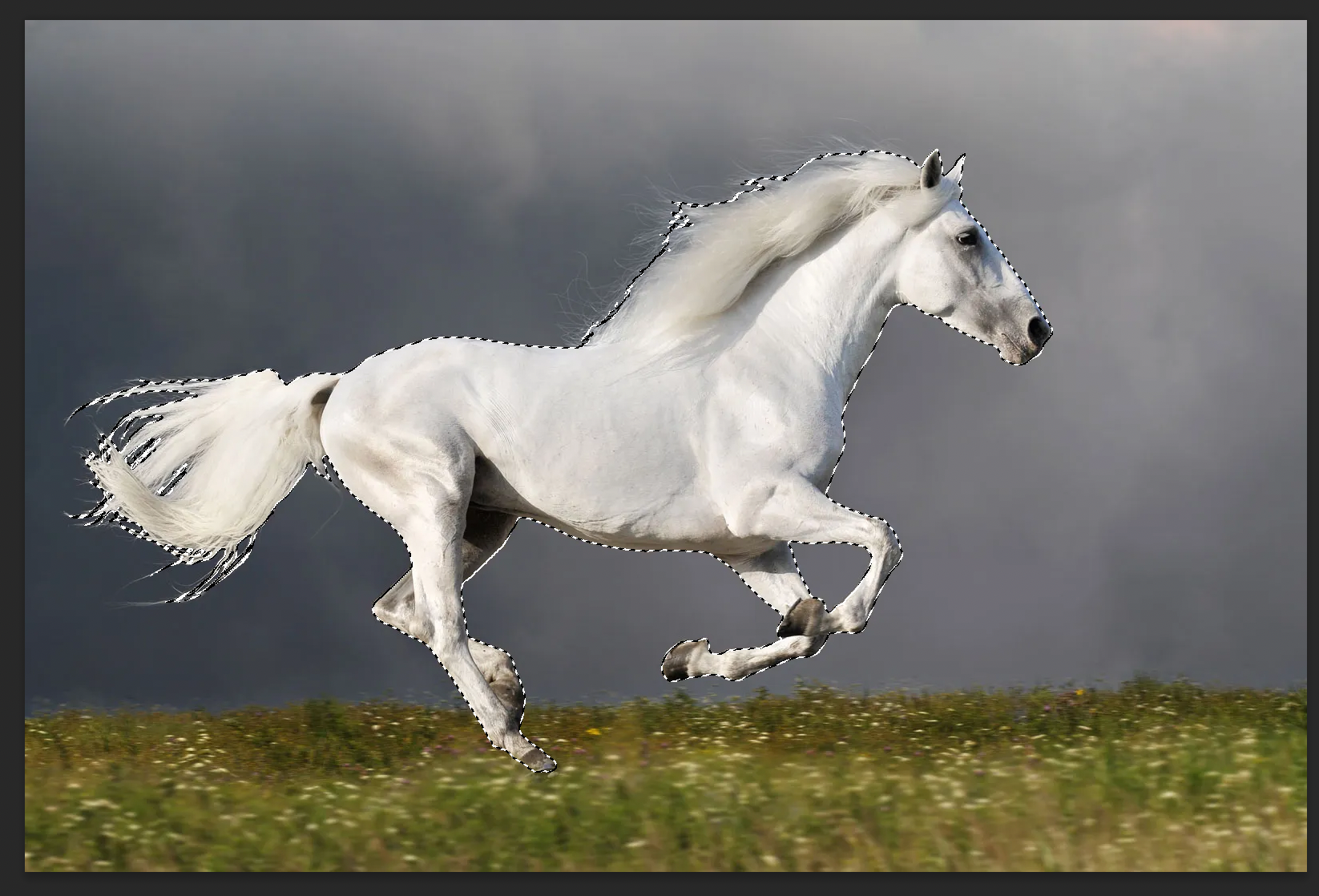
Press cmd-c to copy the selection.
Paste the body onto the background
Select the background tab.
Press cmd-v to add the selection as a new layer.
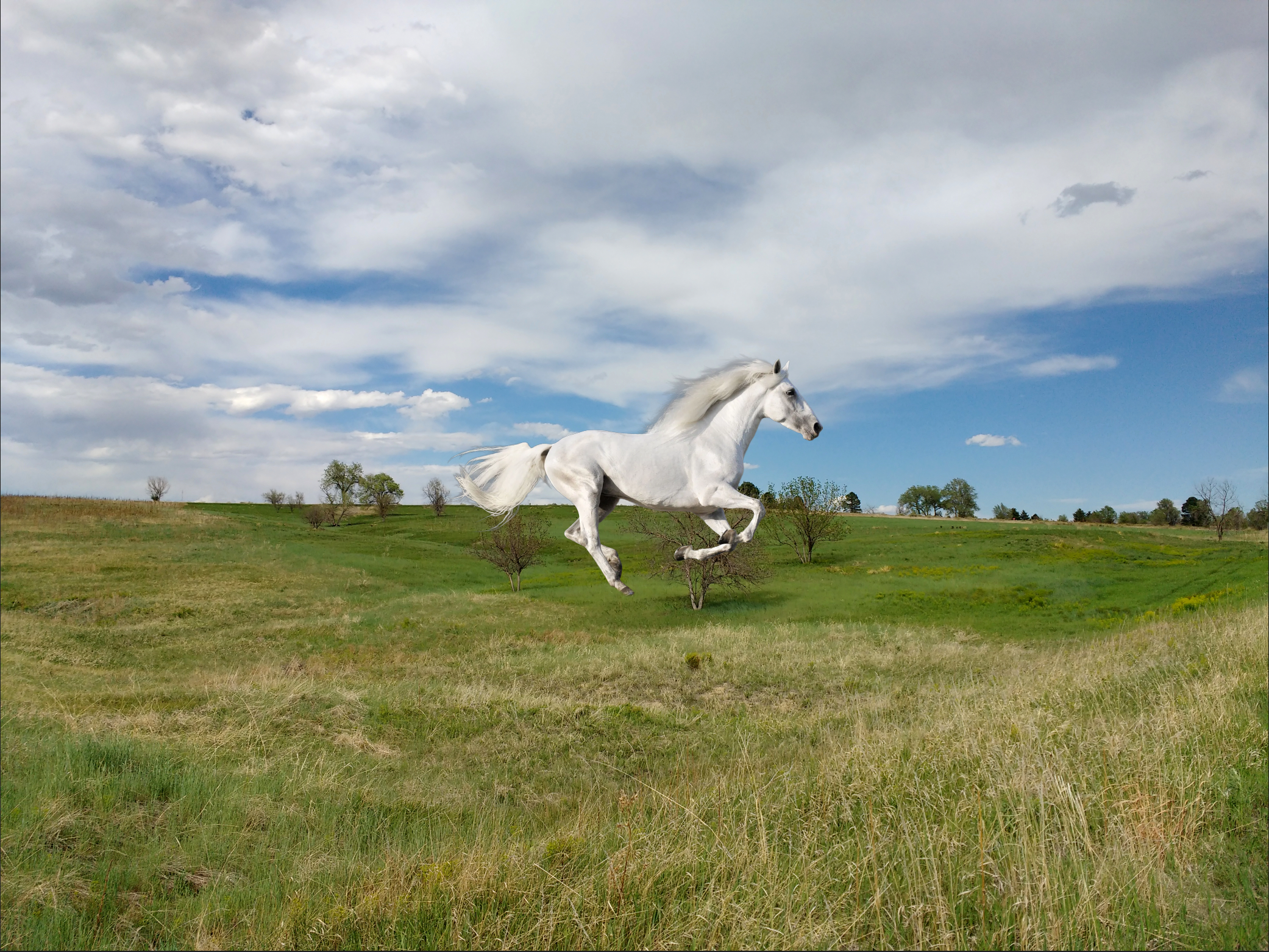
If necessary, resize the image by pressing cmd-T. Remember to leave enough room for the parts of the other animal.
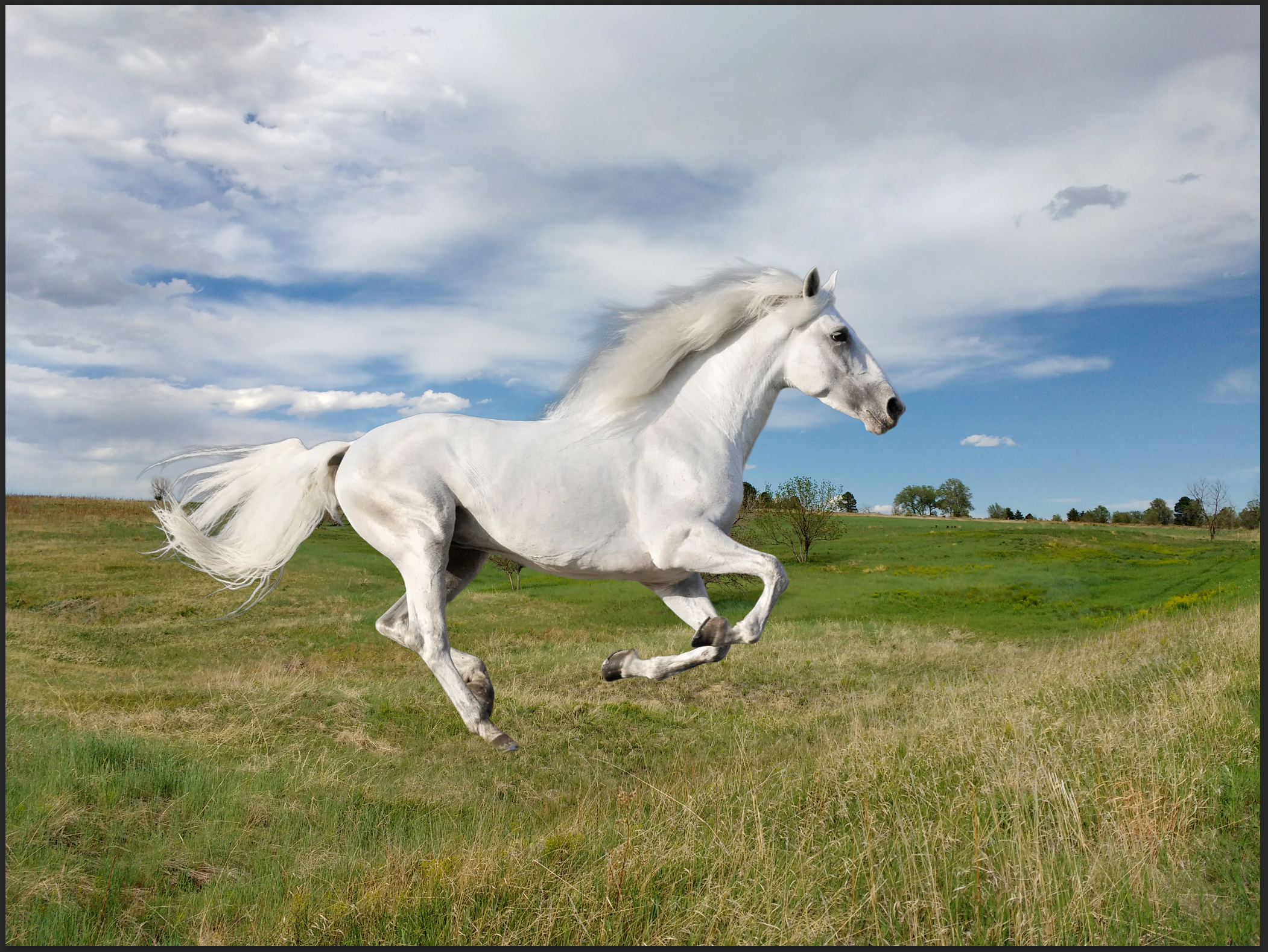
Select and copy the second creature
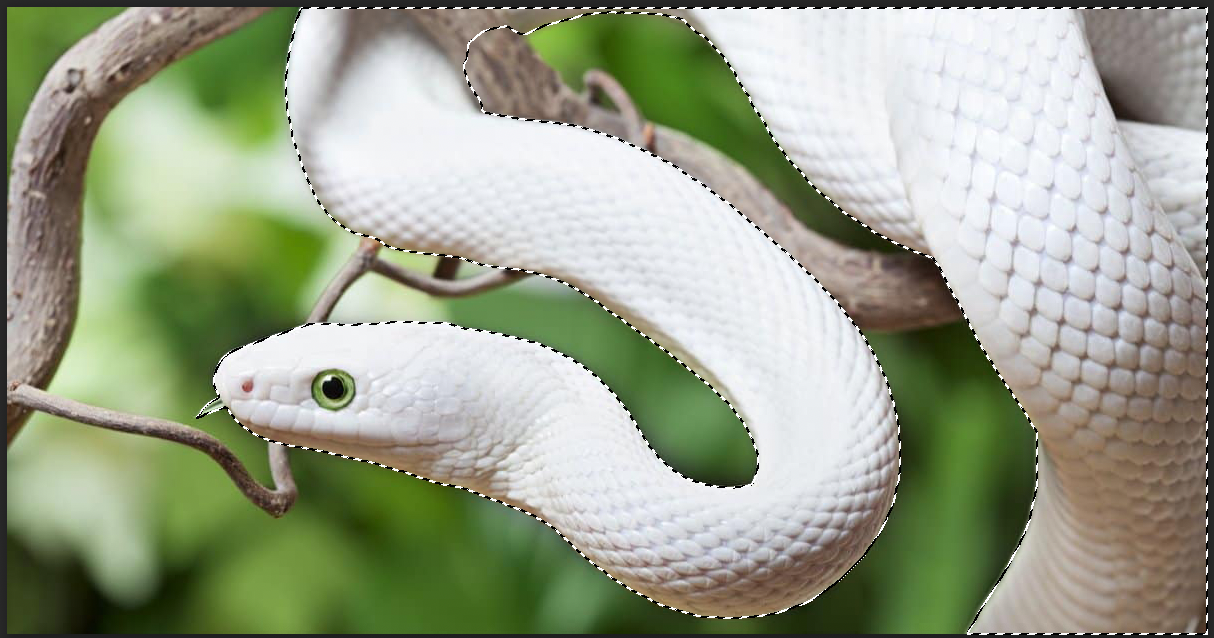
Switch to the second creature’s tab and select it the same way you selected the first one.
Copy and paste the second creature onto the background image.
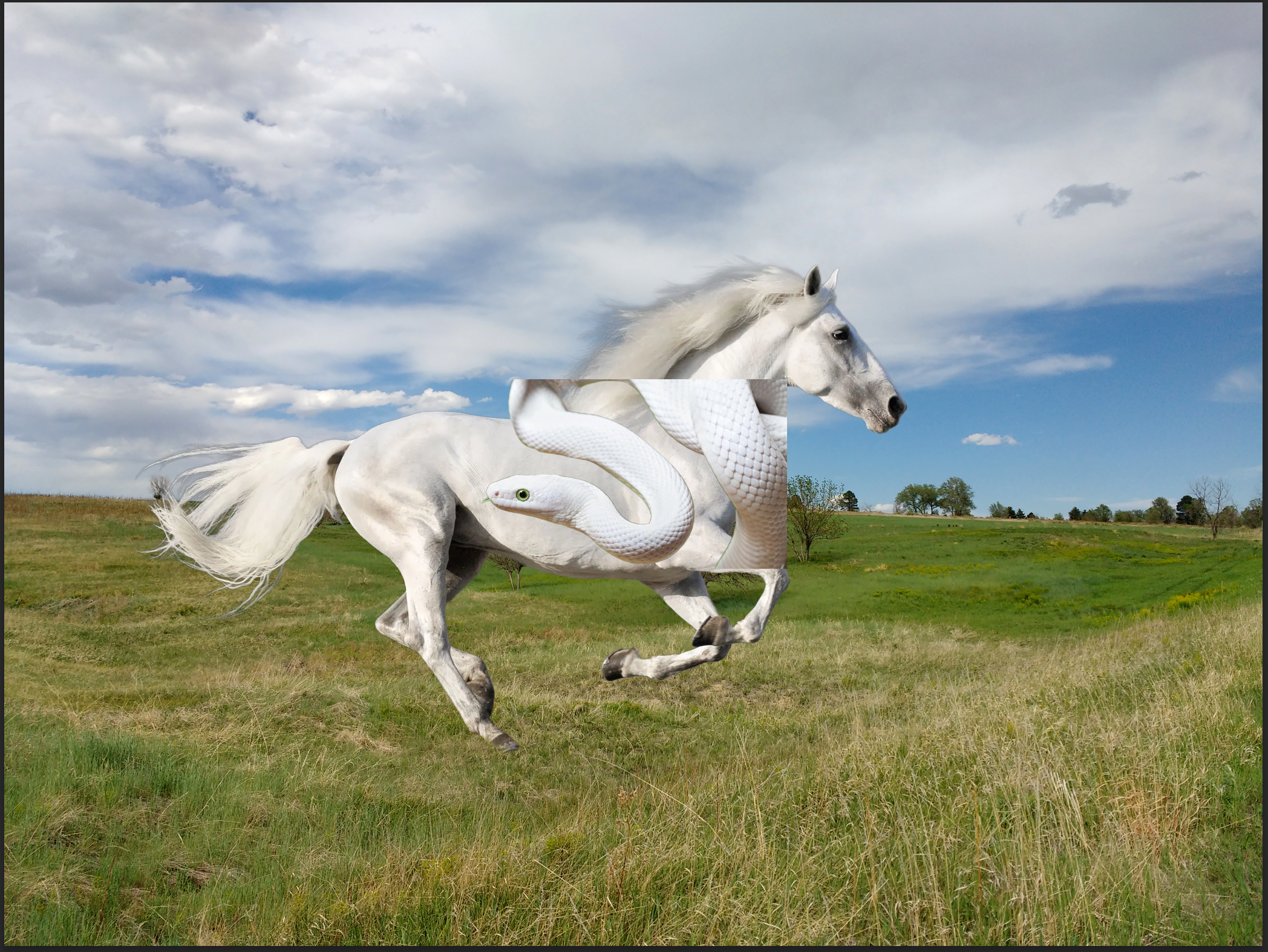
Adjust the size and position
Press cmd-t to transform the second animal. The Contextual Task Bar will change to this:

Use the transform tools to size and position the part of the second animal you’re going to keep.
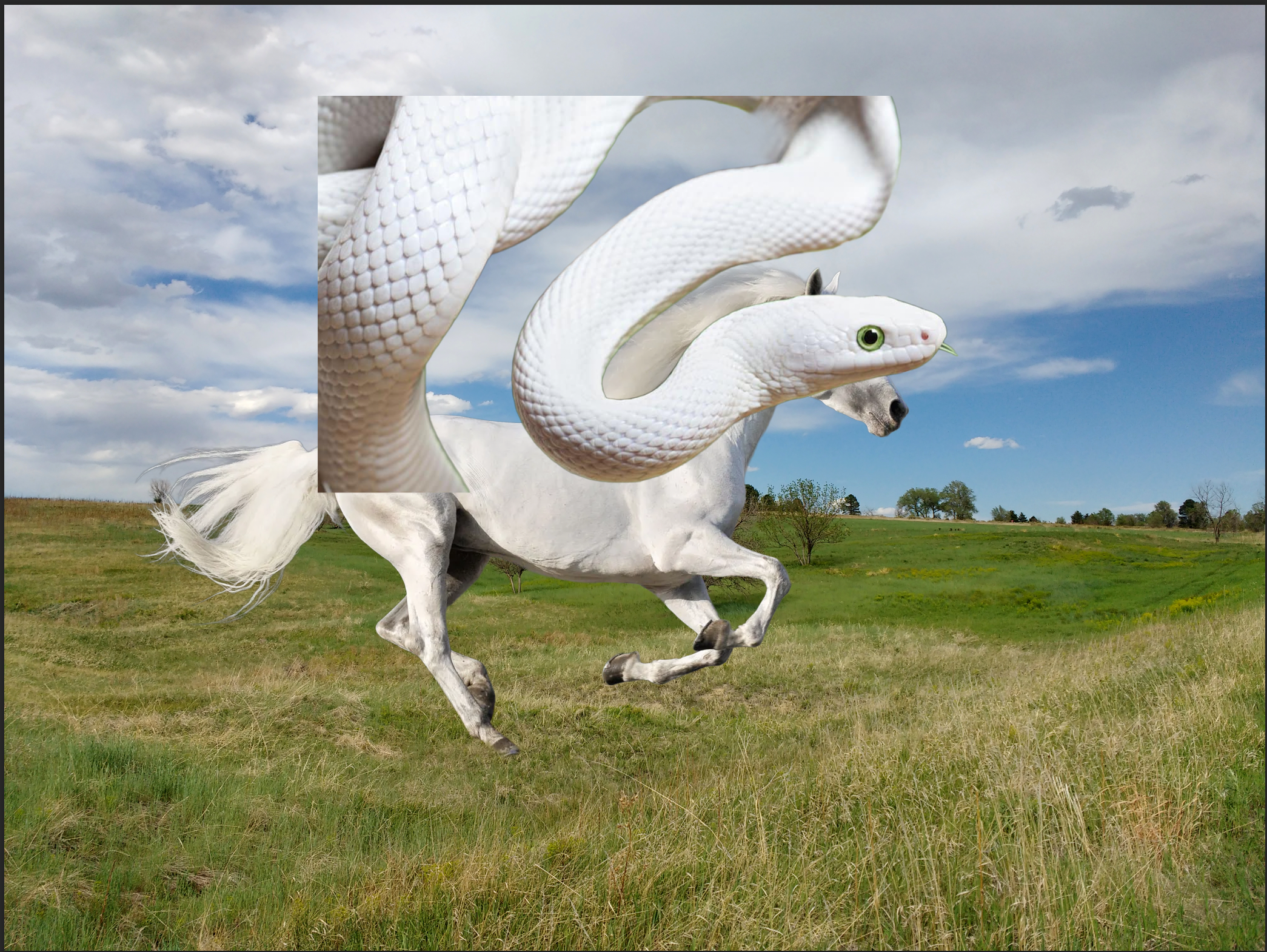
Hide the extra parts of the second animal
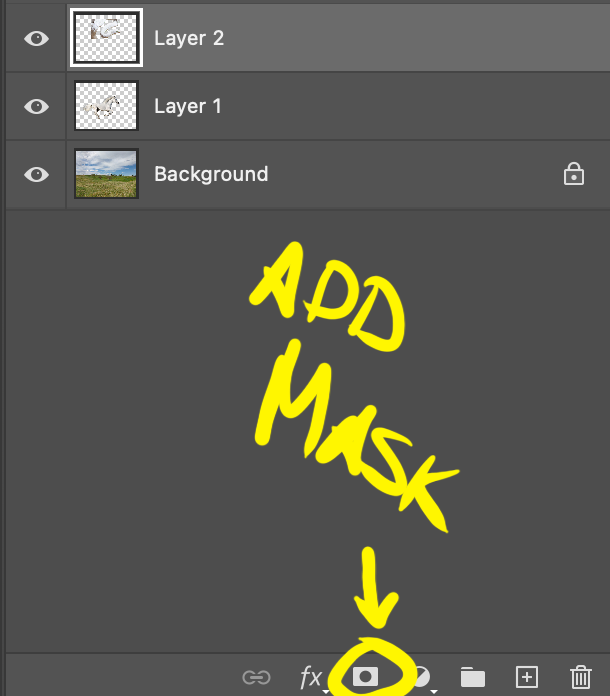
Add a mask to the layer with the second animal.
Make sure the mask is selected.
Switch to the brush tool.
Make sure your foreground color is black.
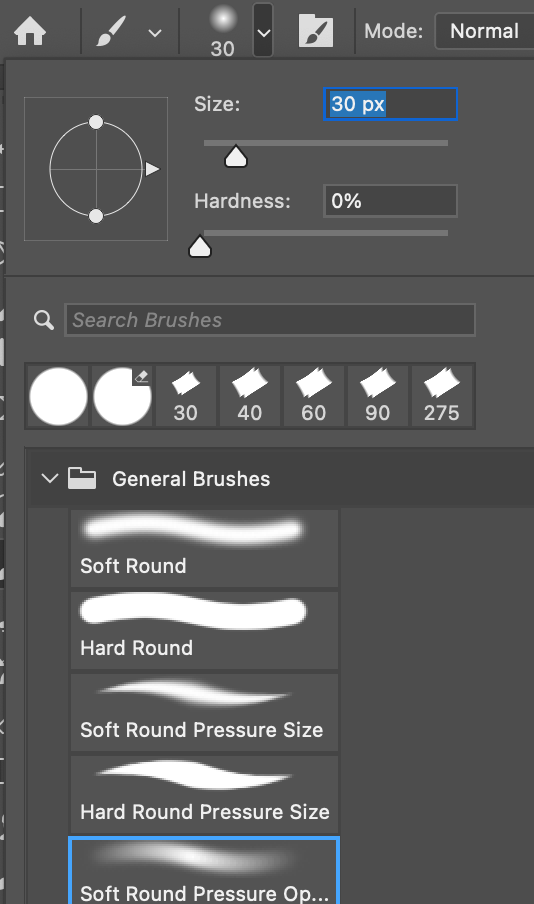
Change your brush to “soft round pressure opacity.”
Brush over the parts of the second animal you want to hide. Don’t press too hard.
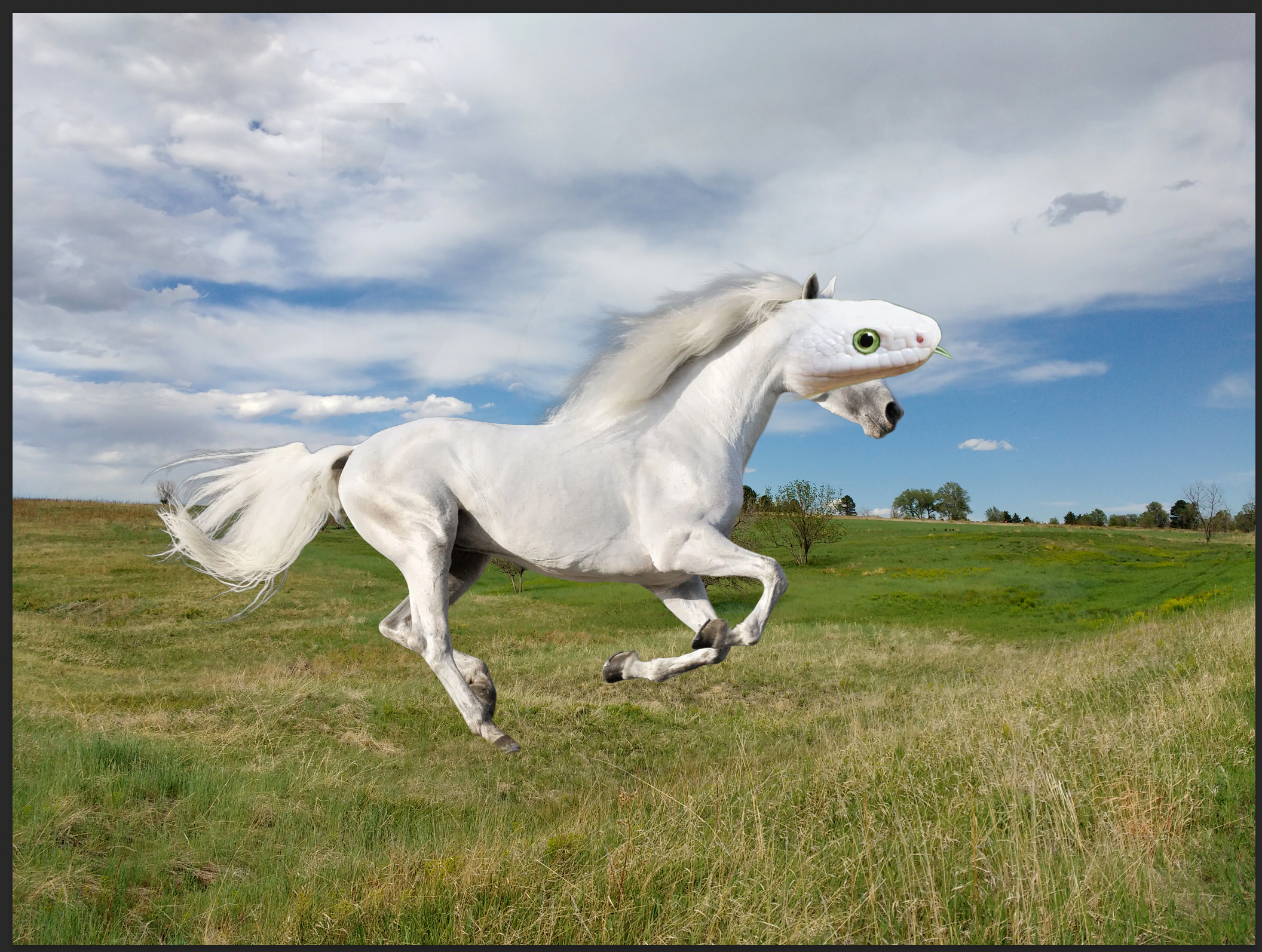
Hide the extra parts of the first animal
Switch to the layer with the first animal.
Add a mask to the layer.
Use the brush to hide the parts that you don’t want to see.
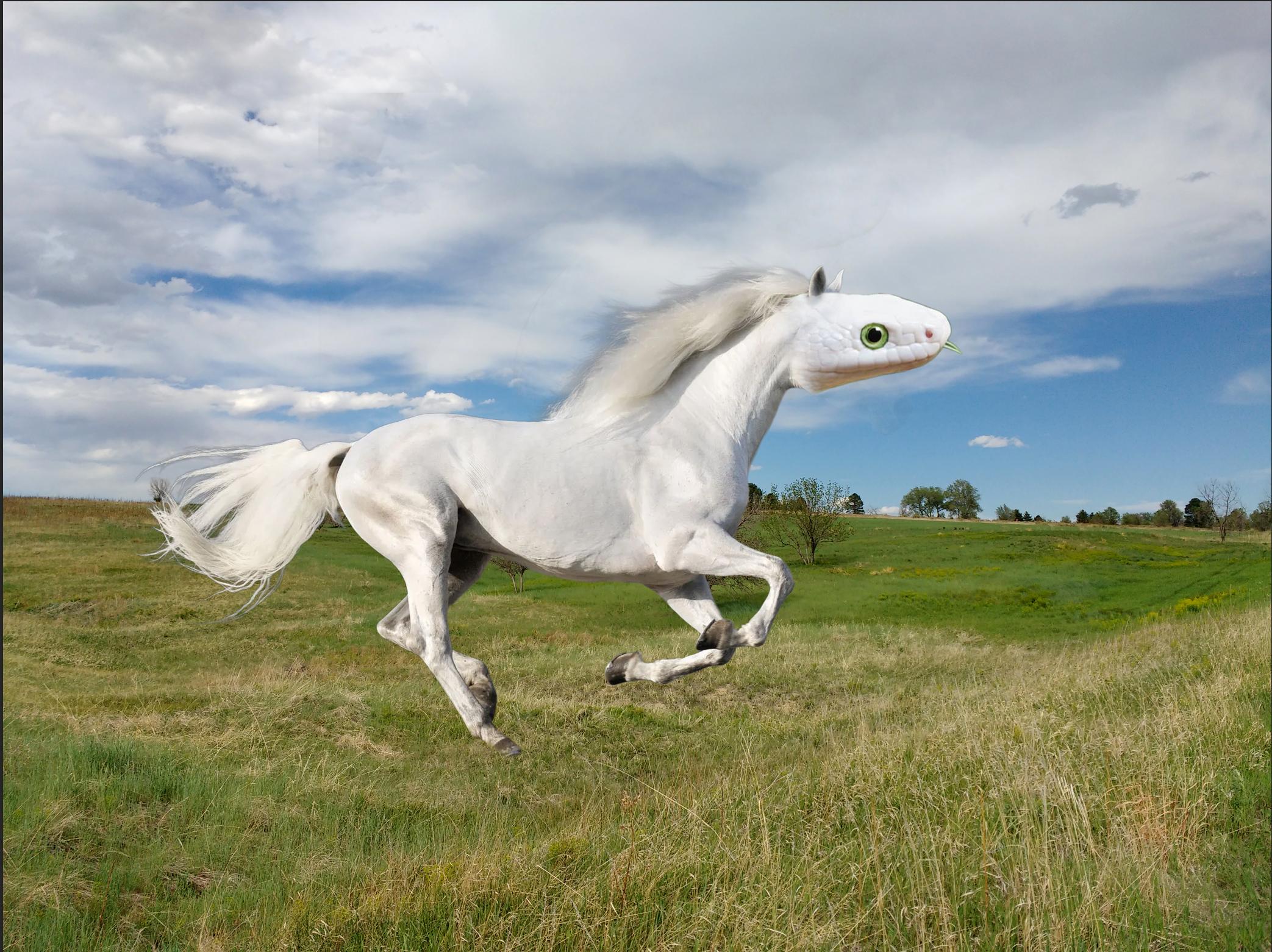
DONE!